Ultimate Guide to Fixing DStv Error E16-4: Causes, Solutions, and Prevention
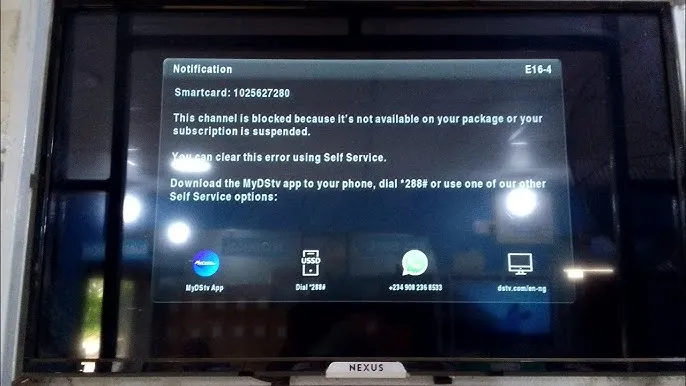
If you’re a DStv subscriber and you’ve encountered the frustrating E16-4 error code on your screen, you’re not alone. This common issue pops up for many users across Africa, often displaying the message “Service is currently scrambled.”
It typically means your decoder isn’t authorizing access to channels properly, but the good news is that it’s usually fixable without needing a technician. In this comprehensive guide, we’ll break down what the E16-4 error means, its common causes, step-by-step fixes, and tips to prevent it from happening again. Whether you’re in South Africa, Nigeria, Kenya, or elsewhere, these solutions should get you back to watching your favorite shows in no time.
By the end of this post, you’ll have all the tools to troubleshoot and resolve DStv Error E16-4 like a pro. Let’s dive in!
Related post: How to Fix DSTV Error Code E48-32: Ultimate Guide to Restoring Your Signal
What is DStv Error E16-4?
The E16-4 error code on DStv indicates that the service is “currently scrambled,” meaning your decoder can’t decrypt the signal for the channels you’re trying to view. This is a subscription-related issue rather than a hardware fault in most cases. It often appears after a payment, during a channel change, or when your decoder has been off for a while. Unlike signal loss errors (like E48-32), E16-4 is tied to account authorization and can affect all channels except perhaps the free-to-air ones like Channel 100.
If left unresolved, it can lock you out of premium content, but it’s designed as a safeguard by MultiChoice to ensure active subscriptions.
Common Causes of DStv Error E16-4
Understanding why the error occurs is the first step to fixing it. Based on official DStv resources and user reports, here are the primary reasons:
- Subscription Issues: Your account might be suspended due to unpaid or partial payments. If you’ve paid less than the required amount for your package, the error can trigger.
- Unauthorized Channel Access: You’re attempting to watch a channel not included in your current bouquet (package). For example, switching to a premium sports channel on a basic plan.
- Decoder Power State During Payment: If your decoder was switched off when you made a payment, it might not receive the activation signal from DStv’s servers.
- Signal or Account Suspension: Temporary suspensions, signal interruptions, or even expired subscriptions can cause this. In rare cases, it’s due to smartcard problems or network glitches.
- Post-Payment Delay: Sometimes, there’s a lag in processing payments, especially if paid via certain methods, leading to the error persisting for a short time.
These causes are straightforward, and most can be resolved at home without calling support.
Step-by-Step Solutions to Fix DStv Error E16-4
Don’t panic—follow these proven steps to clear the error. Start with the simplest ones and escalate if needed. Always ensure your decoder is powered on and connected to the satellite dish during troubleshooting.
1. Verify Your Subscription Status
- Log into the DStv app, website (dstv.com), or use the MyDStv self-service portal.
- Check if your payment has been processed and your account is active.
- If it’s suspended, make the full payment immediately using mobile money, bank transfer, or other methods.
2. Clear the Error via SMS
- This is one of the quickest fixes. Send an SMS with “E16” followed by your smartcard number (found on the decoder or in your account) to the DStv shortcode for your country:
- South Africa: 30333
- Nigeria: 30333
- Kenya: 22722
- Other countries: Check dstv.com for local codes.
- Example: “E16 1234567890” to 30333.
- Wait 5-10 minutes, then tune to Channel 100 or 101 to see if it clears.
3. Use the DStv App or Website for Reconnection
- Download the MyDStv app (available on iOS and Android).
- Sign in with your details and select “Fix Error” or “Reconnect Services.”
- Alternatively, on the website, go to the self-service section and click “Clear Error.”
- This sends a signal to your decoder to reactivate.
4. Reset Your Decoder
- Switch off the decoder at the wall plug for 30 seconds, then turn it back on.
- Press the “Reset” button on the front panel (if available) or use the remote: Menu > Advanced Options > Reset.
- Tune to a channel like 154 and wait for the signal to refresh.
5. Check for Signal Strength
- Go to Menu > Help > Signal Strength. Ensure it’s above 50% for both quality and strength.
- If low, realign your dish or check cables for damage.
6. Contact DStv Support
- If nothing works, reach out via WhatsApp (country-specific numbers on dstv.com), call center, or live chat.
- Provide your smartcard number and error details for faster resolution.
Most users report success with SMS or app methods within minutes.
How to Prevent DStv Error E16-4 in the Future
Prevention is better than cure! Here are some tips:
- Set Up Auto-Payments: Enable automatic deductions to avoid missed payments.
- Keep Your Decoder On: Especially around payment due dates, so it can receive activation signals.
- Monitor Your Package: Regularly check what channels are included to avoid unauthorized access attempts.
- Update Contact Details: Ensure DStv has your current phone/email for notifications.
- Pay Early: Avoid last-minute payments that might not process in time.
Following these will minimize downtime and keep your viewing uninterrupted.
FAQs About DStv Error E16-4
Why does E16-4 appear even after payment?
It could be due to the decoder being off during payment or a processing delay. Try the SMS clear method.
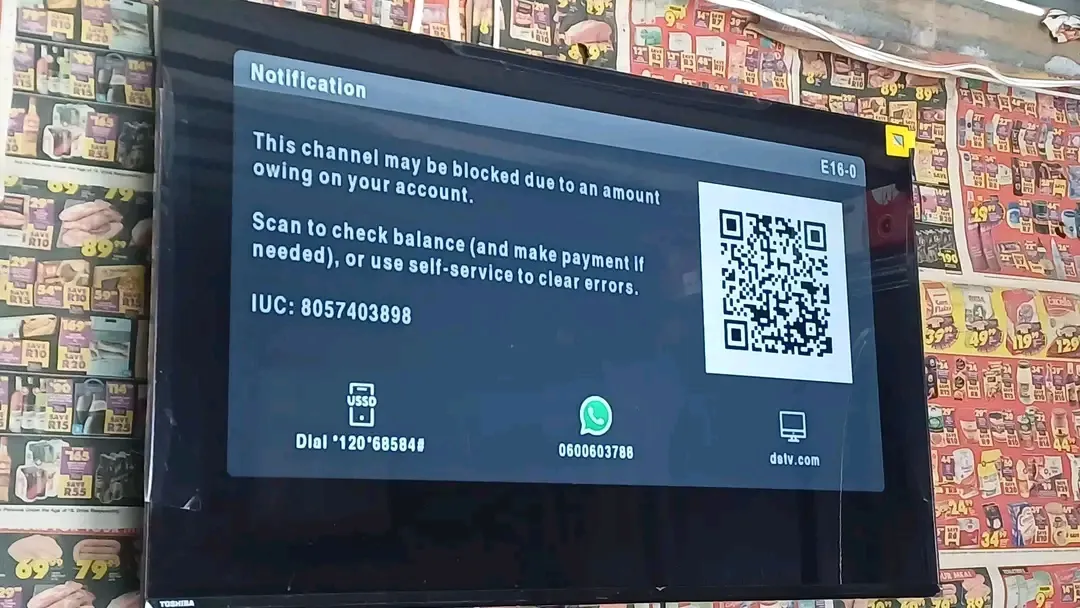
Is E16-4 the same as E16-0?
They’re similar—E16-0 is often a variant for the same subscription issues, and fixes overlap.
Can I fix this without internet?
Yes, use SMS or call support.
How long does it take to clear?
Usually 5-30 minutes after applying a fix.
What if my smartcard is faulty?
Rare, but support can diagnose and replace if needed.
Conclusion
Dealing with DStv Error E16-4 doesn’t have to ruin your day. With the steps outlined above, you can quickly restore your services and get back to entertainment. If you’ve tried everything and still face issues, professional help from DStv is just a call away. For more tech tips and troubleshooting guides, subscribe to our blog and share this post with fellow DStv users!