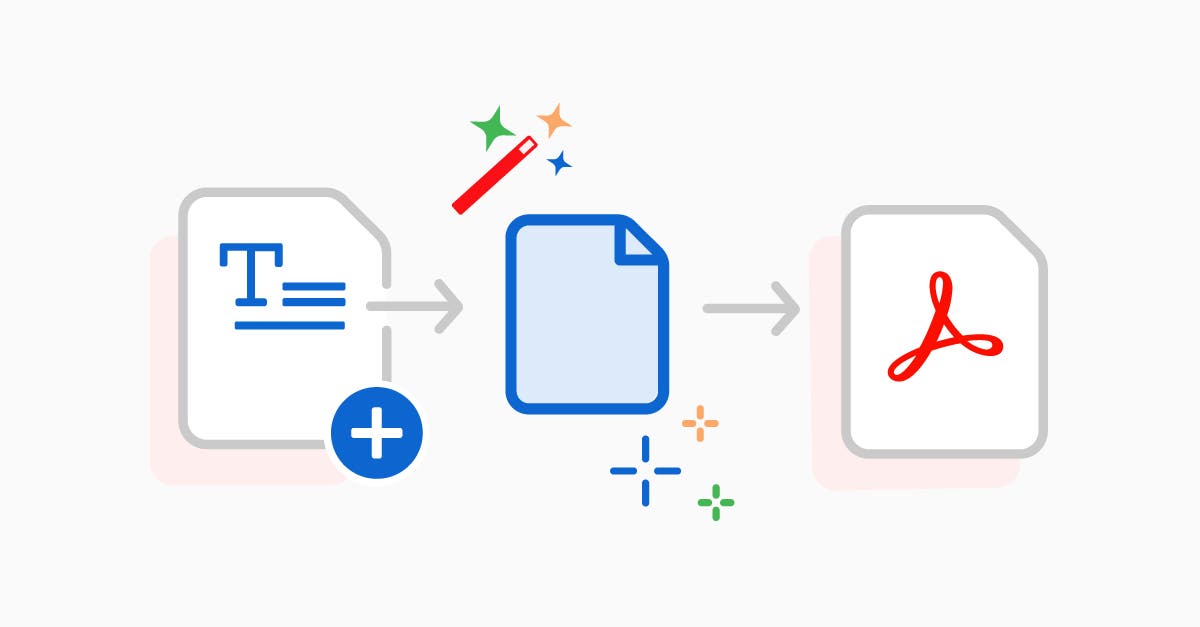
How to Convert Word to PDF: A Simple, Step-by-Step Guide
Hey there! If you’ve ever needed to share a document that looks professional and stays formatted no matter where it’s opened, converting your Word file to PDF is the way to go. PDFs are universal, secure, and perfect for resumes, reports, or any file you don’t want accidentally edited. The best part? It’s super easy and often free. In this guide, I’ll walk you through the most straightforward methods to convert Word to PDF, whether you’re using Microsoft Word itself or handy online tools. Let’s dive in!
Why Convert Word to PDF?
Before we get into the how-to, let’s quickly cover why this is such a common task. Word files (.doc or .docx) are great for editing, but they can shift around on different devices or software versions. PDFs lock everything in place—fonts, images, layouts—and they’re smaller in size too. Plus, they’re ideal for printing or emailing without worries. According to various online resources, millions of people do this daily for work, school, or personal projects.
Method 1: Using Microsoft Word (The Easiest Built-In Option)
If you have Microsoft Word installed on your computer, this is probably the quickest way. No extra software needed!
- Open your Word document in Microsoft Word.
- Click on the File tab in the top-left corner.
- Select Save As (or Export in some versions).
- Choose a location to save your file, then in the “Save as type” dropdown, pick PDF (*.pdf).
- Hit Save, and you’re done! Your new PDF will be ready in seconds.
This method preserves hyperlinks, tables, and images perfectly. If you’re on a Mac or using an older version, the steps are similar—just look for the Export option. Pro tip: If you want more control, like optimizing for web or adding passwords, check the options before saving.
Method 2: Free Online Converters (No Installation Required)
Don’t have Word? No problem! There are tons of free online tools that handle the conversion in your browser. These are great for one-off tasks or if you’re on a shared computer. Here’s how to use a couple of popular ones:
Using Adobe Acrobat Online
Adobe is a big name in PDFs, and their free tool is reliable for basic conversions.
- Head to the Adobe Word to PDF converter page.
- Click Select a file or drag your Word doc into the upload area.
- The tool automatically converts it—usually in under a minute.
- Download your PDF.
It’s free for files up to 100MB, and no sign-up needed for simple uses.
Using iLovePDF or SmallPDF
These sites are user-friendly and offer batch conversions if you have multiple files.
- Visit iLovePDF’s Word to PDF page (or SmallPDF’s equivalent).
- Upload your DOC or DOCX file.
- Click Convert to PDF.
- Download the result.
iLovePDF is especially handy because it keeps your formatting intact and even lets you merge files afterward. SmallPDF is another solid choice with a clean interface. Just be cautious with sensitive docs—use trusted sites to avoid privacy issues.
Other free options include Canva’s converter or Nitro, which work similarly and are great for quick jobs.
Method 3: Using Google Docs (Free and Cloud-Based)
If you’re already in the Google ecosystem, this is a breeze.
- Upload your Word file to Google Drive.
- Open it in Google Docs.
- Go to File > Download > PDF Document (.pdf).
It’s free, works on any device, and handles conversions without losing much formatting. Perfect if you’re collaborating online.
Method 4: Print to PDF (For Any Program)
This old-school trick works if you don’t want to open Word.
- Open your document in any viewer (like Word or even a browser).
- Go to File > Print.
- Instead of a printer, select Microsoft Print to PDF (built into Windows) or a similar option on Mac.
- Click Print and save the PDF.
As one user on Reddit suggested, this is a fast, free alternative without needing extra apps.
Related post: How to Convert PDF to Word
Tips for the Best Conversion Results
- Check Formatting: After converting, open the PDF to ensure nothing shifted. Tools like Adobe handle complex layouts best.
- File Size: If your Word doc has lots of images, compress the PDF afterward using the same online tools.
- Security: For confidential files, add passwords during conversion in Word or Adobe.
- Batch Converting: If you have many files, online sites like iLovePDF make it easy.
- Mobile Options: On your phone? Apps like Microsoft Office or Adobe Acrobat have built-in converters.
Common Questions About Word to PDF Conversion
Is there a free way to convert Word to PDF without losing quality?
Absolutely! Microsoft Word’s built-in feature or free online tools like SmallPDF do it flawlessly.
Can I convert PDF back to Word?
Yes, but that’s a different process—use tools like Adobe or iLovePDF for reverse conversions.
What if my Word file is too large?
Most free tools cap at 100MB, but you can split files or use paid versions for bigger ones.
There you have it—a no-fuss guide to converting Word to PDF. Whether you’re prepping a job application or sharing notes, these methods will save you time and hassle. If you run into any issues, drop a comment below or check out the linked resources for more details. Happy converting!